Kling VIDEO 3.0 helps creators turn written scene direction into longer, more structured video clips with Native Audio, Multi-Shot creation, flexible duration, and stronger prompt adherence. For 2D-inspired scenes, the safest approach is to describe the visible look, character action, setting, lighting, and camera movement directly.
Writing 2D-Inspired Kling Video Prompts
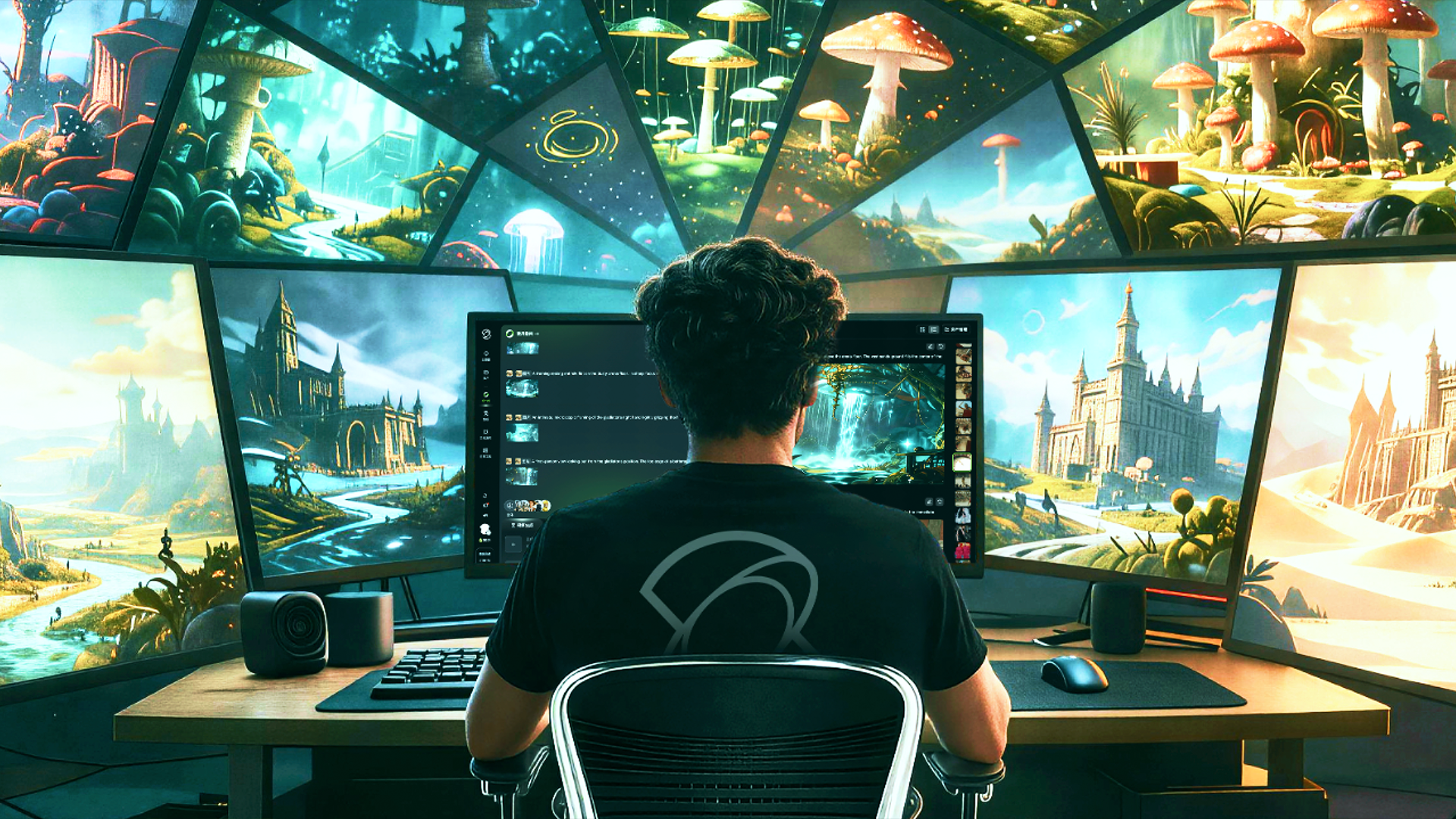
For video prompts, describe the desired 2D-inspired look in natural language rather than treating image style transfer as a video feature. Use clear visual cues such as clean line art, cel-shaded color, painterly backgrounds, flat illustration, ink textures, or comic-style motion when those choices support the scene.
A useful 2D prompt can start with the intended visual direction, then move into subject, action, setting, camera, and lighting. Keep style language descriptive: clean cel-shaded linework, soft hand-painted background, warm sunset palette, expressive character acting, or dramatic sky lighting.
Essential Style Identifiers
Visual Direction | Visible Signature | Use Case |
Clean anime-inspired linework | Bold contours, expressive faces, flat color accents | Action scenes and character moments |
Painterly fantasy background | Soft light, hand-painted textures, natural scenery | Quiet fantasy or travel scenes |
Cinematic sky lighting | Vibrant sunset color, cloud detail, dramatic rim light | Emotional urban or outdoor scenes |
Flat illustration | Simple shapes, clean color blocks, minimal texture | Modern shorts and explainers |
Ink and wash look | Flowing black ink, soft gradients, restrained palette | Historical or poetic scenes |
Building Effective AI Anime Video Prompts
Crafting AI anime video prompts works best when the prompt moves from visual direction to concrete scene details. A practical structure includes the style direction, character description, action, setting, camera language, lighting, and any audio or dialogue needed for the scene.
The Hierarchical Prompt Structure
1. Visual Direction: Start with the intended look, such as clean 2D linework or painterly background art.
2. Character Detail: Describe the subject, their clothing, and their expression.
3. Environment: Detail the lighting, the background, and the atmospheric effects.
4. Camera Language: Include framing, angle, and movement in plain language.
For example, a high-energy battle scene could read: "clean 2D anime-inspired linework, a narrow rainy alley, a dark scaled monster facing a warrior in a crimson kimono, quick footwork, sparks from clashing blades, low tracking camera, dramatic rim light." The prompt stays grounded in visible action and camera direction.
Keeping The 2D Look Clear
Keep the desired look in positive language: clean linework, flat color, painterly background, readable silhouette, and stable anatomy. If an output looks too realistic or distorted, revise the prompt toward the visible 2D traits you want.
Reference | Prompt | Output |
|---|---|---|
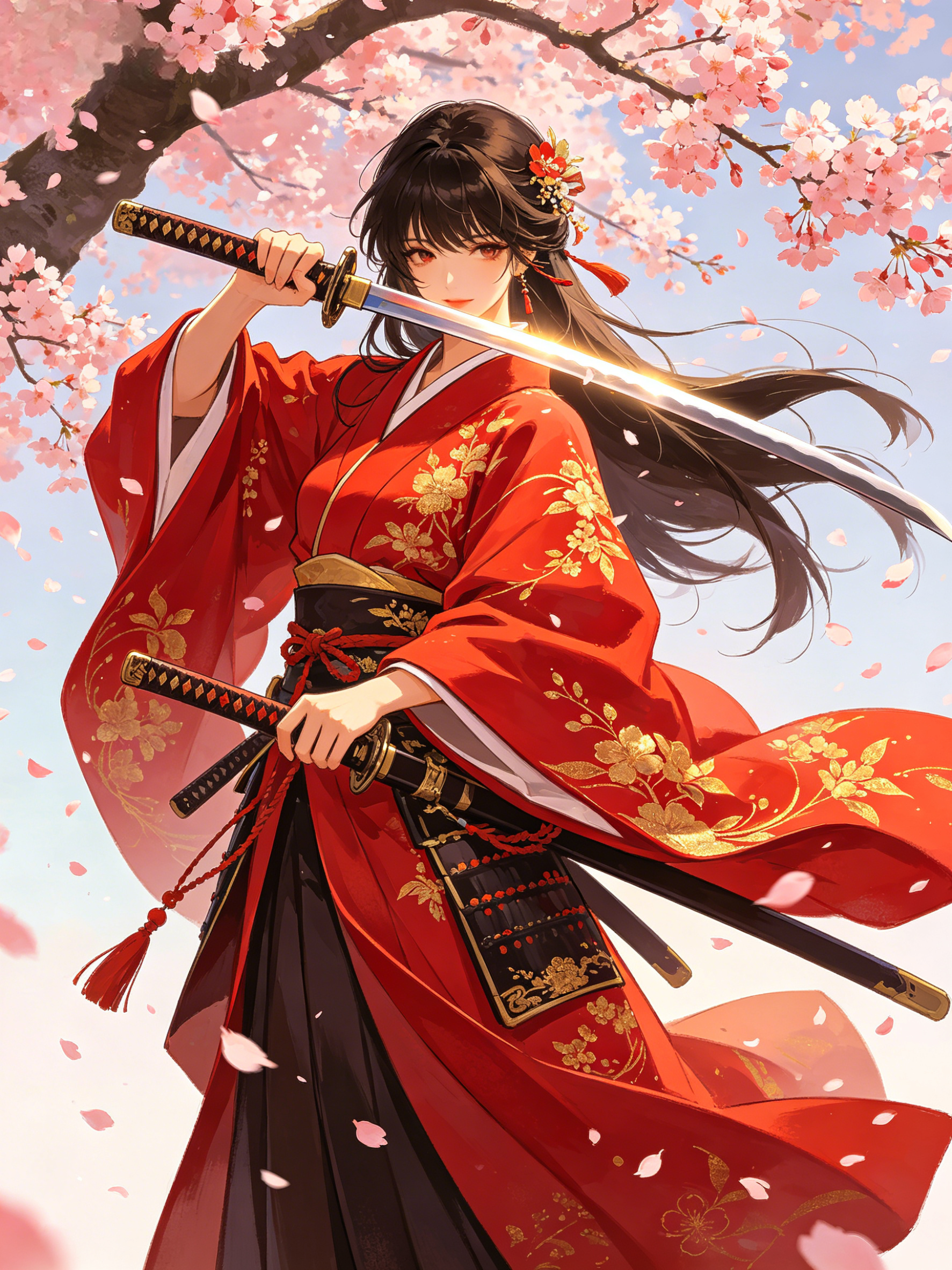 | Japanese Anime style, ultra stylized, high energy intense battle scene in a narrow rainy alleyway. Dark scaled monster versus female warrior in flowing crimson kimono. High detail anime battle choreography with fast slashes, dodges, leaps, and powerful counters. Dramatic fabric billowing, sparks, flying debris, high speed action. Dynamic cinematic camera tracking and quick cuts, vibrant anime lighting, rain and energy effects, ultra detailed, high energy battle choreography. | 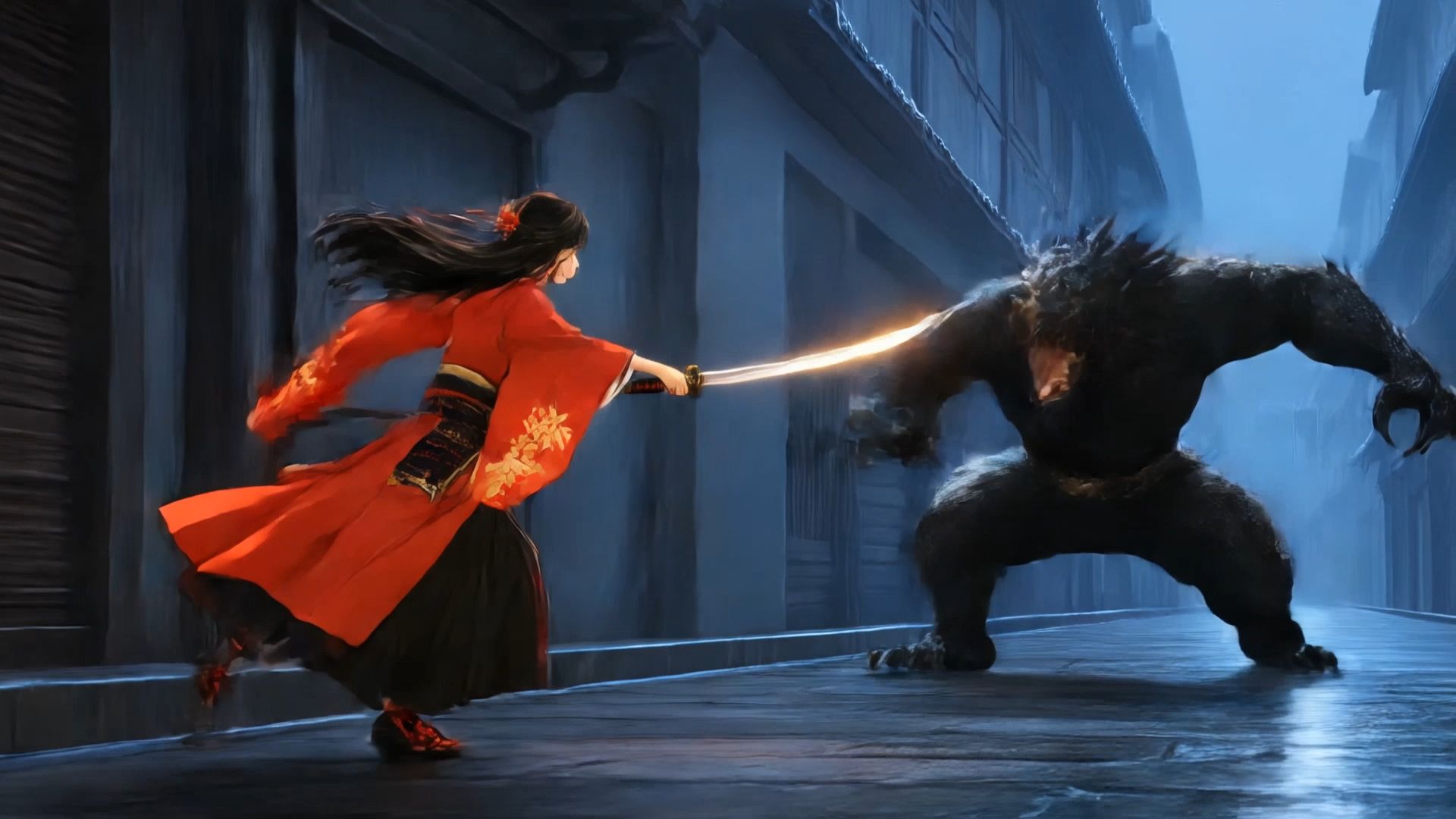  |
Achieving Consistency with Elements 3.0
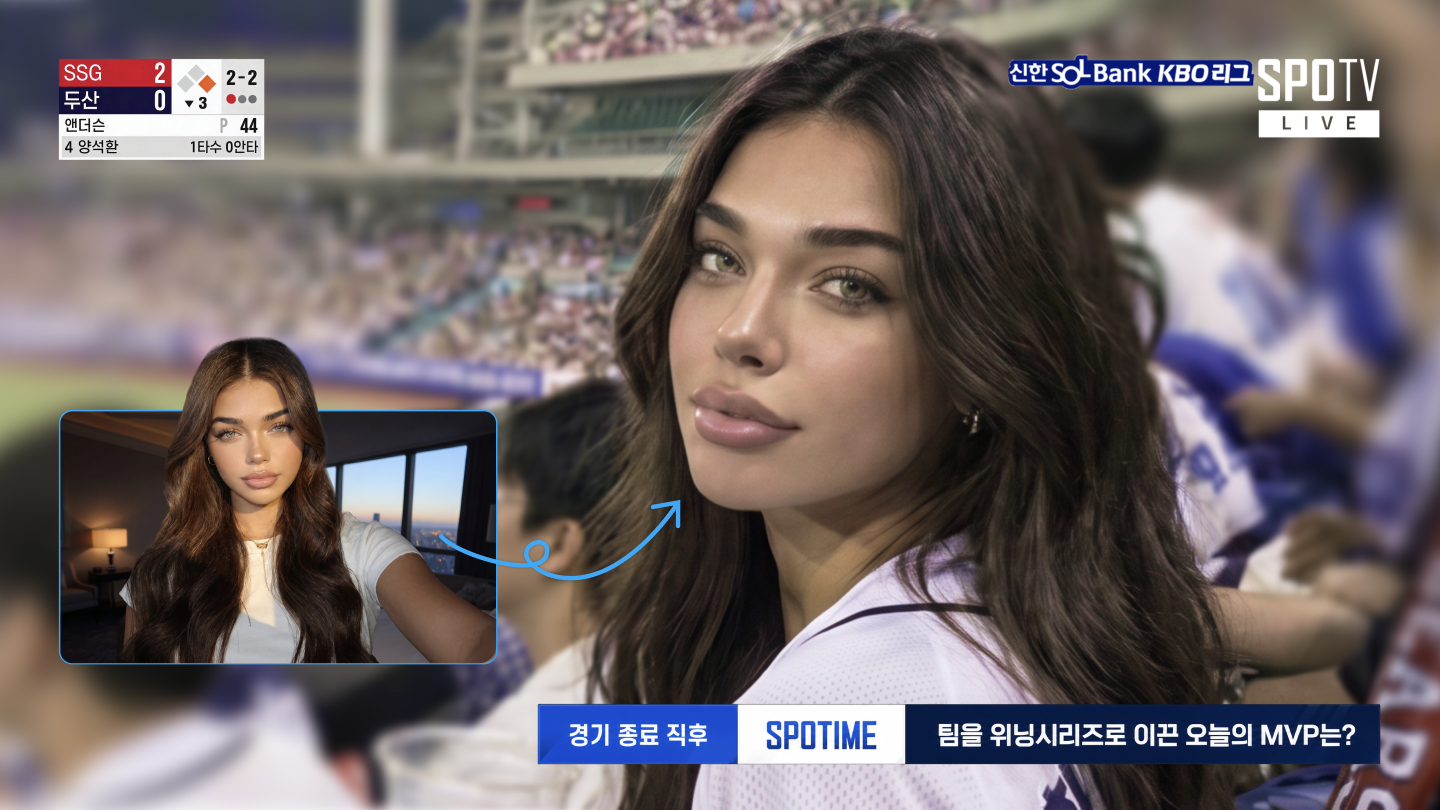
For recurring characters, Kling VIDEO 3.0 Omni supports reference-driven workflows such as Multi-image Reference, Element Reference, and Video Element Reference. Use clean references when the same character, product, prop, or scene needs to remain recognizable.
Element Voice Control can add voice to elements in supported Kling VIDEO 3.0 Omni workflows. When voice matters, keep the character reference, speaker name, line, language, and delivery note clear.
Reference Strategy for Stable Results
For stable reference use, choose clear source images or video elements that match the subject's role in the scene. If a scene needs a full-body action, provide references that show the outfit, silhouette, and key details clearly.
Cinematic Storyboarding With Multi-Shot
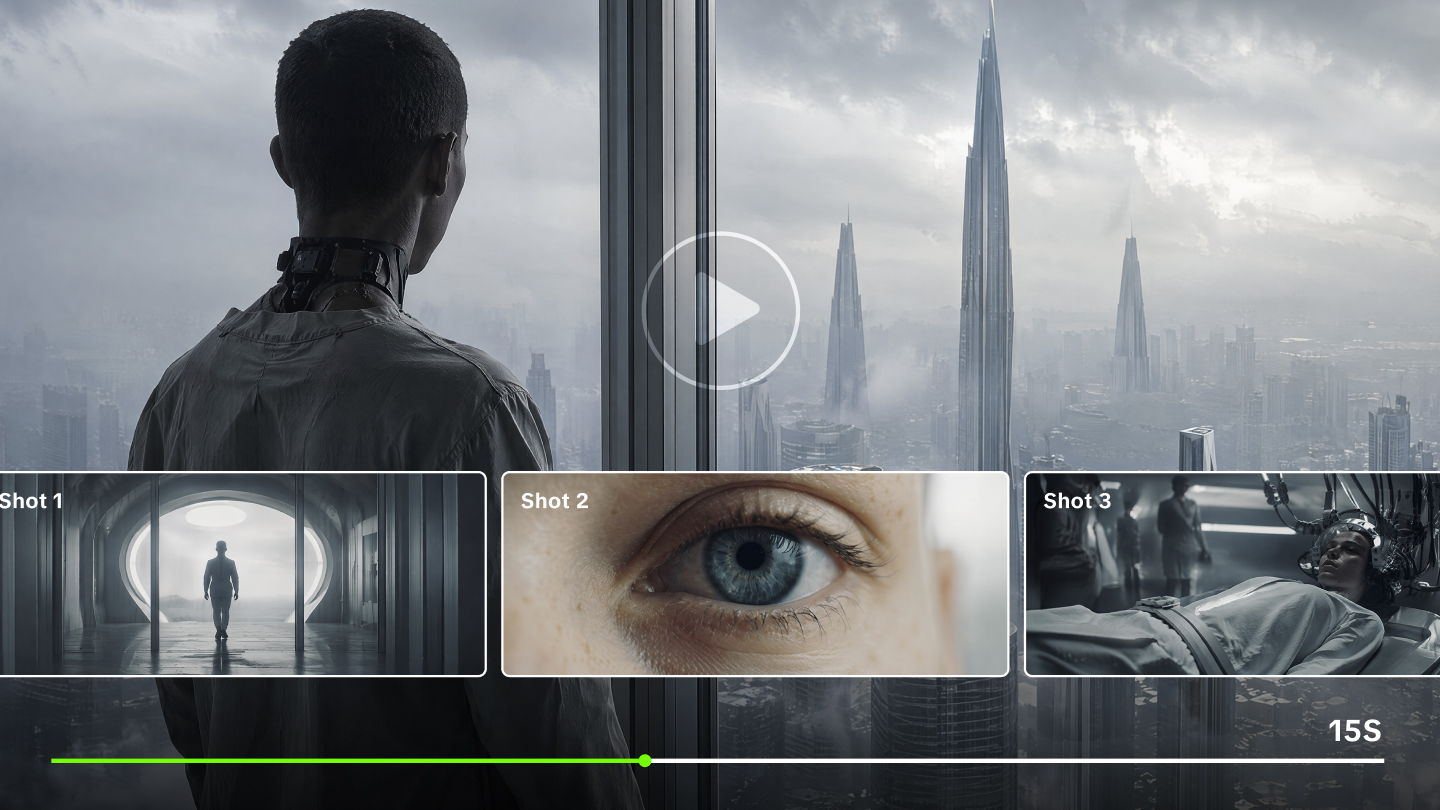
Creating an epic scene often requires more than one perspective. Kling VIDEO 3.0 supports Multi-Shot creation, while Custom Multi-Shot gives shot-level control over duration, shot size, perspective, narrative content, and camera movement.
Professional Shot Types
Use cinematic language to describe how each shot should read in the final scene.
● Shot Reverse Shot: Use alternating close-ups for dialogue or reaction beats.
● Cross-Cutting: Alternate between two actions or locations to build urgency.
● Dynamic Dolly and Pan: Smooth camera movements are coordinated across transitions.
● Bird Eye View: Provides a wide shot from directly above to show scale.
● Over the Shoulder: Anchors a conversation from a specific character's perspective.
With Custom Multi-Shot, define the duration, framing, viewpoint, narrative content, and camera movement for each shot.
Elements | Prompt | Result | ||
|---|---|---|---|---|
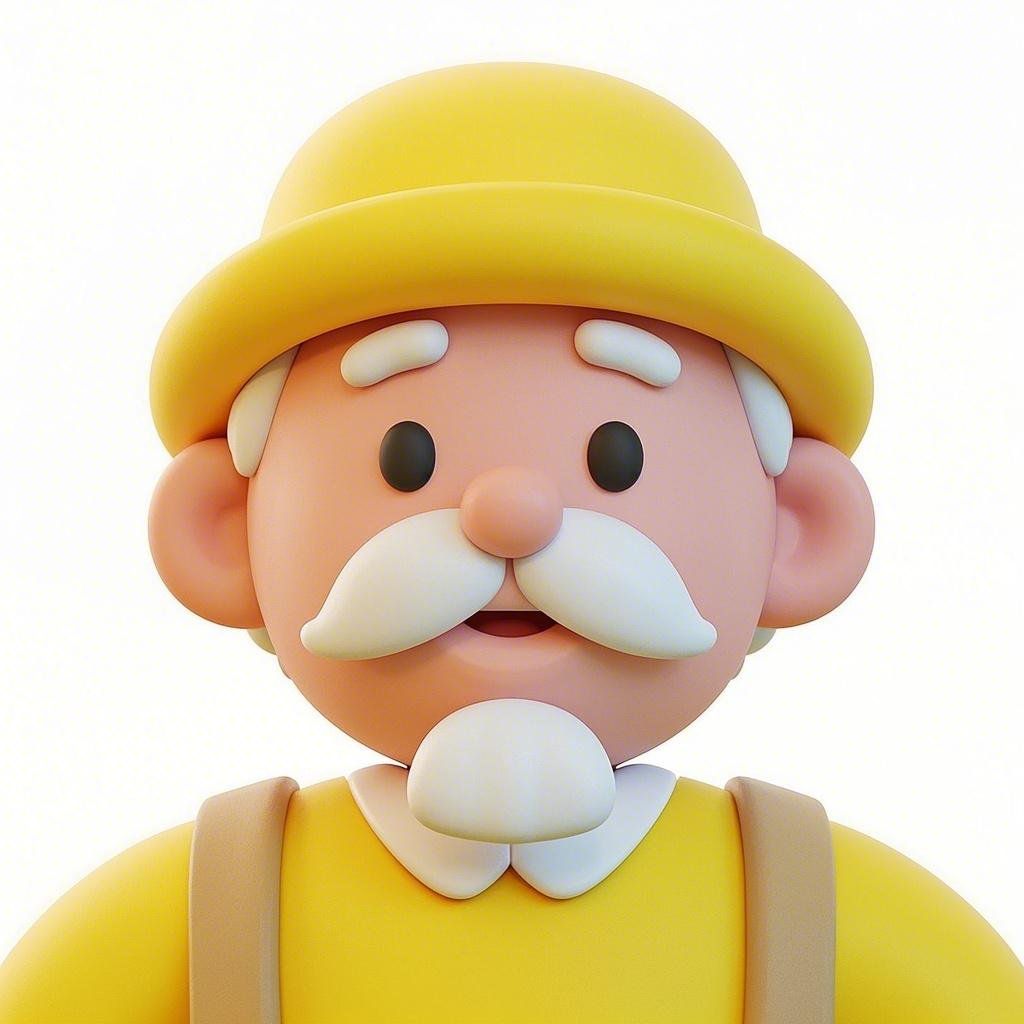 | 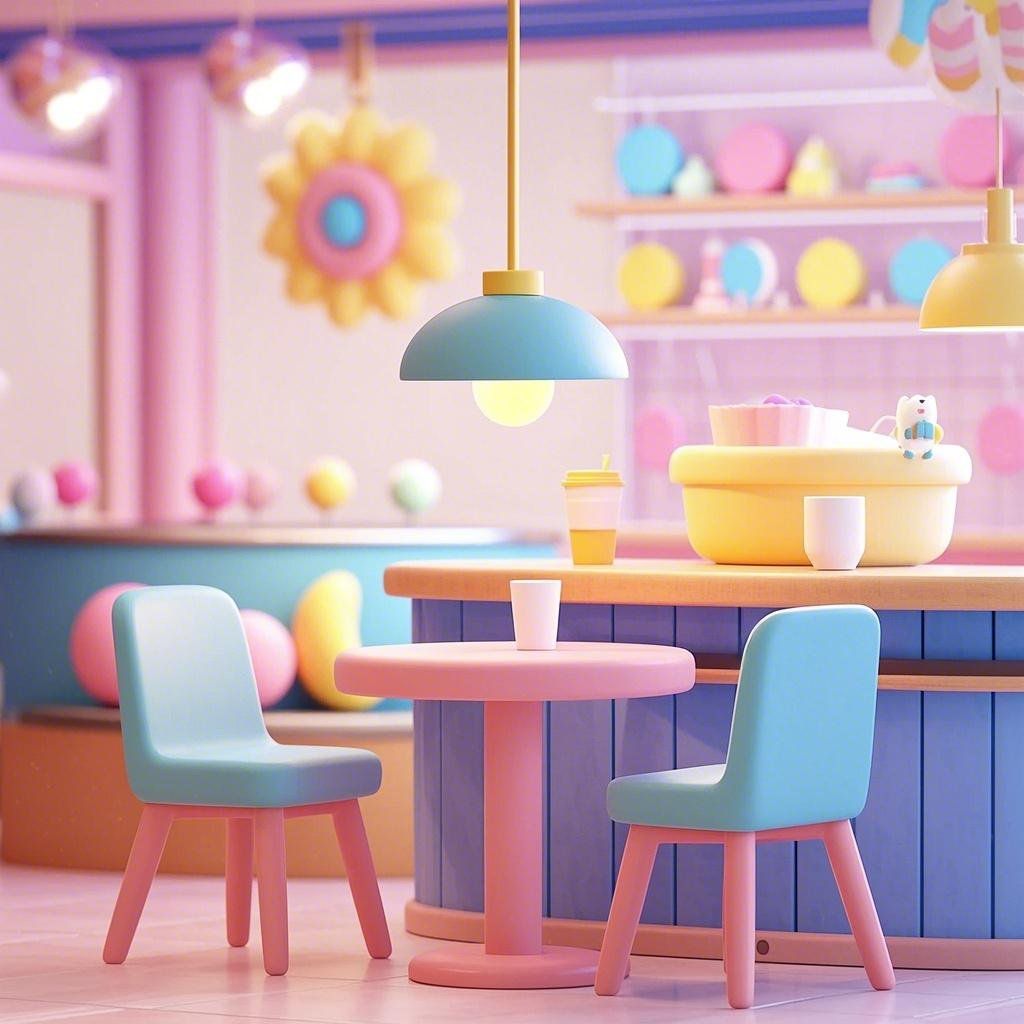 |  | In a café, a cartoon-style elderly man lifts a cup to drink coffee | 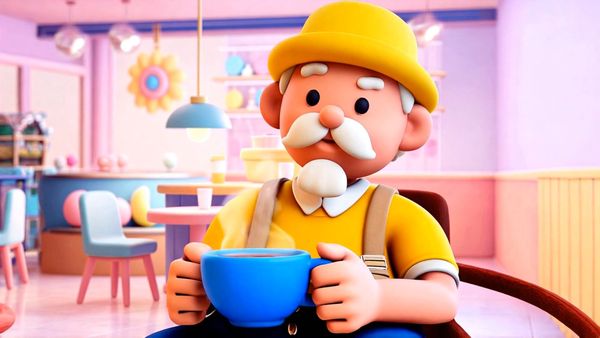 |
Native Audio and Lip Sync
Kling VIDEO 3.0 supports Native Audio, including dialogue, sound effects, and ambience in supported workflows. For a 2D-inspired scene, pair visible action with clear sound direction, such as clashing swords, city ambience, footsteps, or a line of dialogue.
The 3.0 series supports Chinese, English, Japanese, Korean, and Spanish, along with dialects and accents. For dialogue, write the speaker, line, language, and delivery clearly.
Technical Optimization for 2D Production
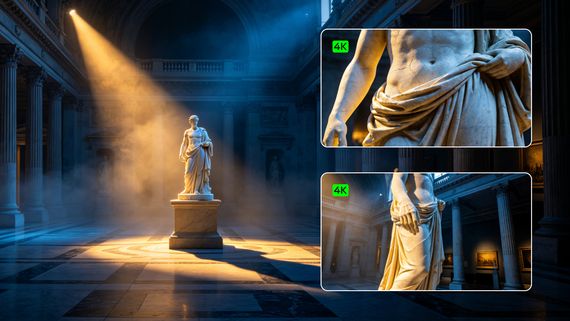
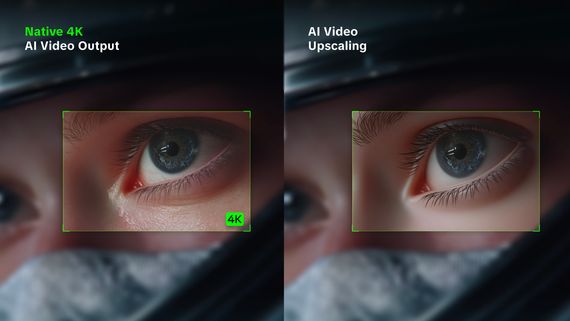
Production planning should account for model choice, duration, resolution, audio, reference needs, and current plan access. Kling VIDEO 3.0 series also includes a 4K video mode for sharper visuals and richer detail.
Camera Language In Plain Words
Use camera language that describes the visible result: close-up, wide shot, low angle, slow push-in, tracking shot, pan, tilt, or over-the-shoulder framing. Keep the camera instruction tied to the action and emotion of the scene.
A Workflow for Epic 2D Scenes
To summarize the creative process, follow these steps to produce a professional 2D animation.
1. Concept and Script: Write a narrative prompt with a clear 2D visual direction.
2. Reference Preparation: Prepare clean reference images or video elements when a recurring character matters.
3. Reference Use: Select references or elements that match the character's role in the scene.
4. Voice Direction: Use Element Voice Control where the workflow needs voice connected with a character element.
5. Shot Planning: Use Multi-Shot or Custom Multi-Shot when the scene needs structured coverage.
6. Generation: Choose duration, resolution, Native Audio, and references according to the current product interface and plan access.
A structured prompt helps creators move from visual concept to scene, action, audio, and shot plan without relying on unsupported feature names.
Build Clear 2D-Inspired Kling Video Prompts
Use Kling VIDEO 3.0 for clear scene direction, Multi-Shot storytelling, Native Audio, and reference-driven consistency when your 2D-inspired video needs a more complete narrative.
FAQs
Q1. How Do You Write Effective Prompts for 2D Animation?
Start with a clear visual direction, then add subject, action, setting, lighting, camera movement, and audio where needed.
Q2. How Can a Creator Maintain Character Consistency?
Use reference images, elements, or video elements when a character or prop needs to remain recognizable across a scene.
Q3. Does the Model Support Multilingual Dialogue?
The 3.0 series supports Native Audio in Chinese, English, Japanese, Korean, and Spanish, along with dialects and accents.
Q4. What Is the Maximum Length of a Video Generated in One Go?
Kling VIDEO 3.0 allows for a continuous generation duration of up to 15 seconds. That time frame permits more elaborate storytelling compared to shorter clips. It provides enough duration for complex action sequences or cinematic dialogue scenes.
Q5. How Do Multi-Shot Features Improve the Creative Workflow?
Multi-Shot helps creators build scenes with more shots and coverage in one generation. Custom Multi-Shot supports shot-level control over duration, shot size, perspective, narrative content, and camera movement.