Text-to-speech (TTS) uses speech synthesis models that learn from human voice recordings to turn written text into spoken audio. Choosing the best text-to-speech tool depends on your needs. This guide compares 10 tools based on voice quality, multilingual performance, creative control, and key strengths to help you find the right fit. You'll also see how Kling AI makes it easier to create multilingual character dialogue and helps match each voice to the right character.
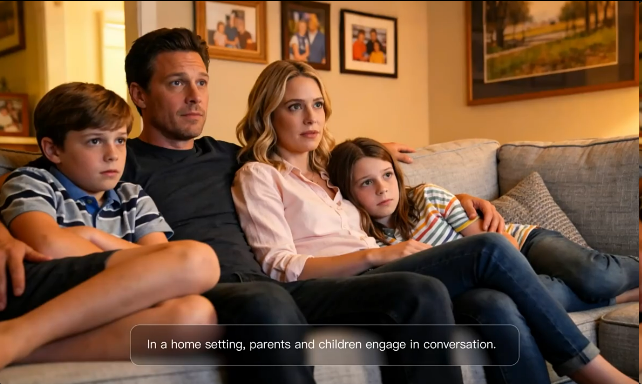
10 Best AI Text-to-Speech Tools Compared
Some text-to-speech tools produce natural-sounding voiceovers, while others help you read documents, edit audio, or create videos with character dialogue. We compared 10 popular text-to-speech generators based on what they're best for, their main features, and how you can use them.
Tool | Best For | Key Strengths | How to Use It |
Kling AI | Multilingual character dialogue in AI videos | Native audio, lip sync, multi-character dialogue, and custom voice binding | Describe your scene and dialogue, add optional image or Element references, enable Native Audio, and generate your video. |
ElevenLabs | Natural-sounding AI voiceovers | Realistic speech, voice cloning, and customization | Enter a script, choose or customize a voice, and generate audio |
Murf AI | Business voiceovers | Control over speed, pitch, tone, and pronunciation | Edit your script in Murf Studio, choose a voice, and fine-tune the narration |
NaturalReader | Reading documents aloud | Document and webpage reading with voice options and playback controls | Upload a document or open a webpage, choose a voice, and listen |
Speechify | Listening across devices | Cross-device syncing, natural-sounding voices, and adjustable playback speed | Listen to articles and documents through the mobile app or browser |
TTSMaker | Free online text to speech | Multilingual speech generation, audio downloads, and basic voice controls | Paste text, select a voice and language, and download the audio |
Amazon Polly | Adding speech to apps | Multiple speech engines, API access, and SSML support | Use the API to turn text into speech and add it to your app |
WellSaid | Corporate training and course narration | Voice management, pronunciation controls, and team collaboration | Enter your training script, choose a voice, and create or revise the narration |
Descript | AI voiceover creation and editing | Script-based voice generation and text-based audio editing | Write a script, assign an AI voice, and generate or edit the speech |
Fliki | Voiceover-led video creation | AI voices, visuals, captions, and music in one workflow | Enter a script, choose a voice and visuals, and create a narrated video |
What Makes a Good AI Text-to-Speech Tool?
Choosing the best AI text-to-speech tool depends on what you're making. A voice that sounds good when reading an article may not work as well for character dialogue or video narration. Before picking a tool, consider its voice quality, language support, editing controls, and how the audio fits into your project.
Key Factor | What to Look For |
Voice Quality | Natural pacing, clear pronunciation, and realistic pauses, even in longer sentences |
Languages & Accents | Support for your target languages, regional accents, and dialects, with voice samples you can test |
Voice Control | Speed, pitch, emphasis, and emotional delivery where available, plus distinct voices for different speakers |
Output Formats & Workflow | MP3 or WAV downloads, API access, or speech generated alongside video, depending on your project |
Editing & Ease of Use | Simple ways to revise dialogue, correct pronunciation, and change voices without starting over |
Usage Limits & Licensing | Generation limits, download options, commercial usage rights, and consent requirements for voice cloning |
Lip Sync for Video | For character videos, look for mouth movements that align naturally with the spoken words and timing, with each line matched to the intended speaker. |
Try the same sample script in two or three tools. Include a name that's difficult to pronounce, a longer sentence, and a change in tone. For video projects, test a short conversation between characters. You'll get a better sense of how each tool handles speech and how much editing you'll need.
How Kling AI Brings Text to Speech Into AI Video
Kling VIDEO 3.0 Omni generates character dialogue, performances, and scene sounds alongside the visuals. You can write dialogue in your prompt, add visual references, and describe how each character should speak. Whether you're making a short film, a character-driven story, or a dialogue-led video ad, you can create speech and sound as part of the video, cutting down on the work of producing audio separately.
Generate Video and Dialogue Together with Native Audio
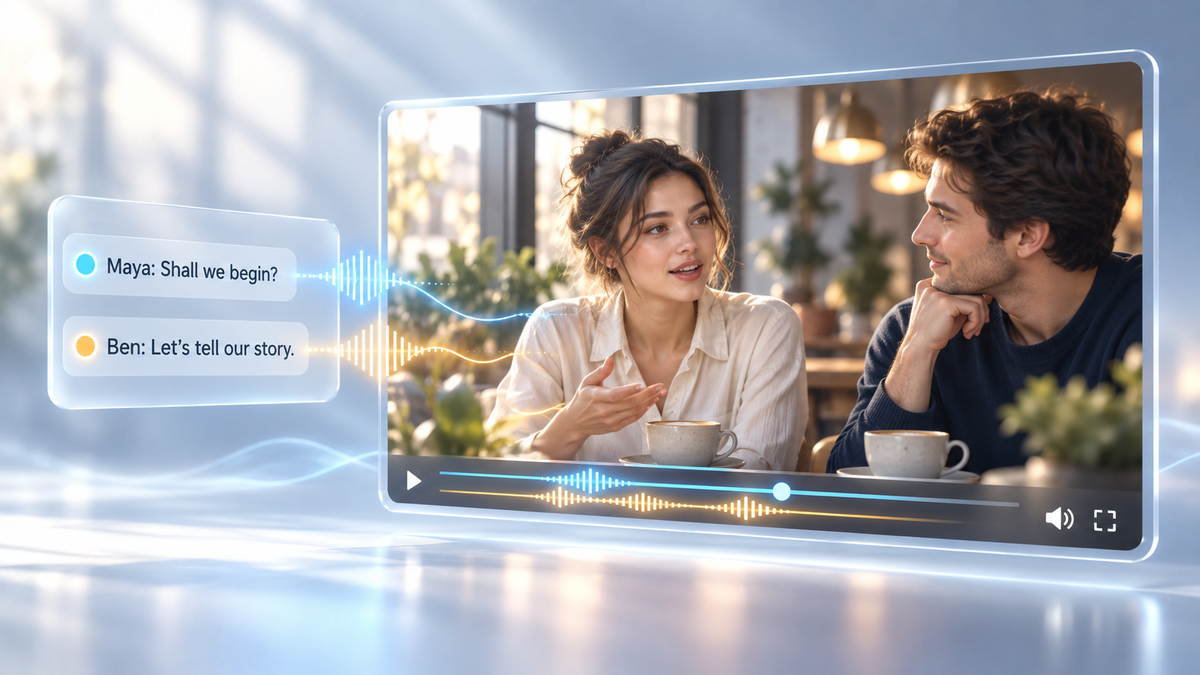
Adding dialogue to a finished video usually means recording or generating voiceovers, lining up speech with the footage, matching lip movements, and adding sound effects. With Native Audio, the Kling AI video generator creates spoken dialogue, mouth movements, and scene sounds alongside the visuals. You can write each character's lines in your prompt and describe how they should sound, from a quiet reply or a burst of laughter to a sudden change in tone. You can also describe ambient sounds in your prompt, so the dialogue and background audio suit the scene.
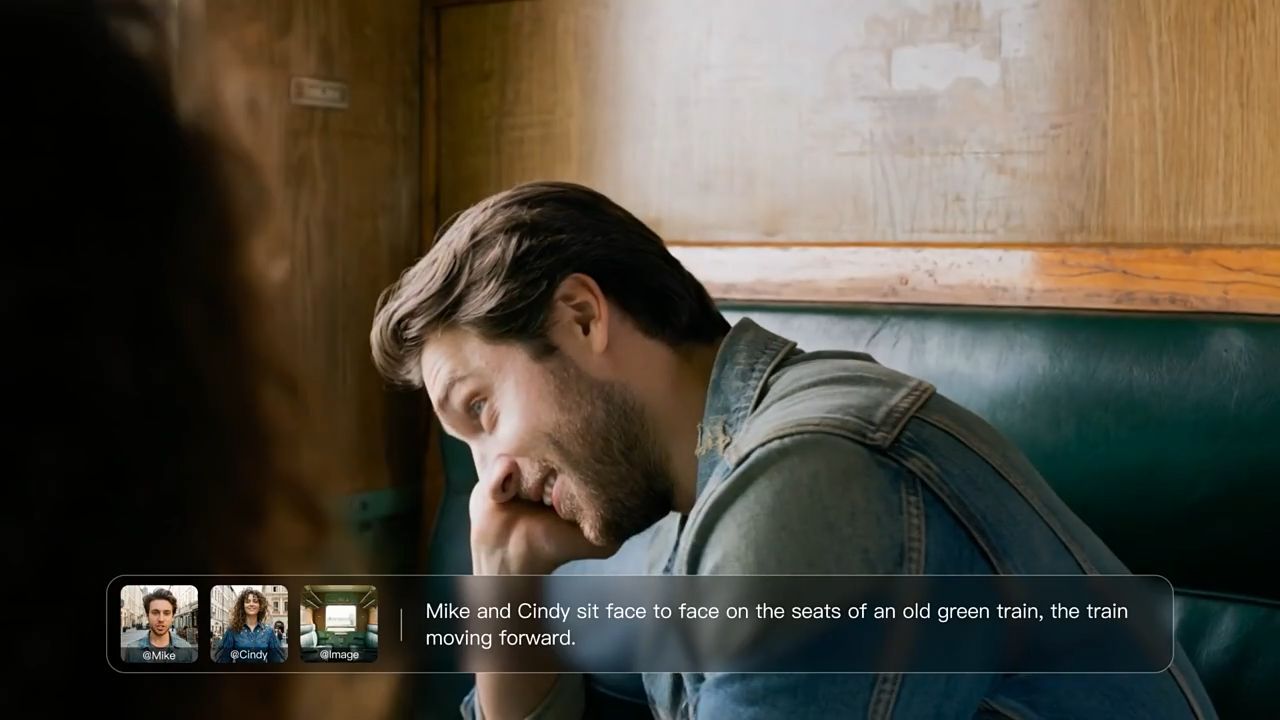

Keep Character Dialogue and Voices Consistent
Give a recurring character a recognizable voice with Kling VIDEO 3.0 Omni. Element Voice Control lets you bind a voice to a Character Element and reuse it in later videos. Add the saved Element, write the character’s new lines, and describe the delivery you want. Whether the character appears in a story series or another product video, you can keep a familiar vocal identity while changing the dialogue and setting.
Create Character Dialogue in Different Languages and Accents
When you're telling a story with multilingual dialogue or making videos for audiences in different regions, you can choose languages that fit your characters and viewers. Kling VIDEO 3.0 Omni supports speech generation in Chinese, English, Japanese, Korean, and Spanish. You can also have characters speak different languages within the same video.
You can specify accents, such as American or British English, in your prompt and describe each character's speaking pace, tone, and delivery. For example, one character might ask a question in American English while another answers in Spanish. You could also have characters from different regions speak with their own accents, giving each one a voice that fits their background and personality. Explore AI dubbing to create multilingual character dialogue alongside your video’s visuals and scene sounds.
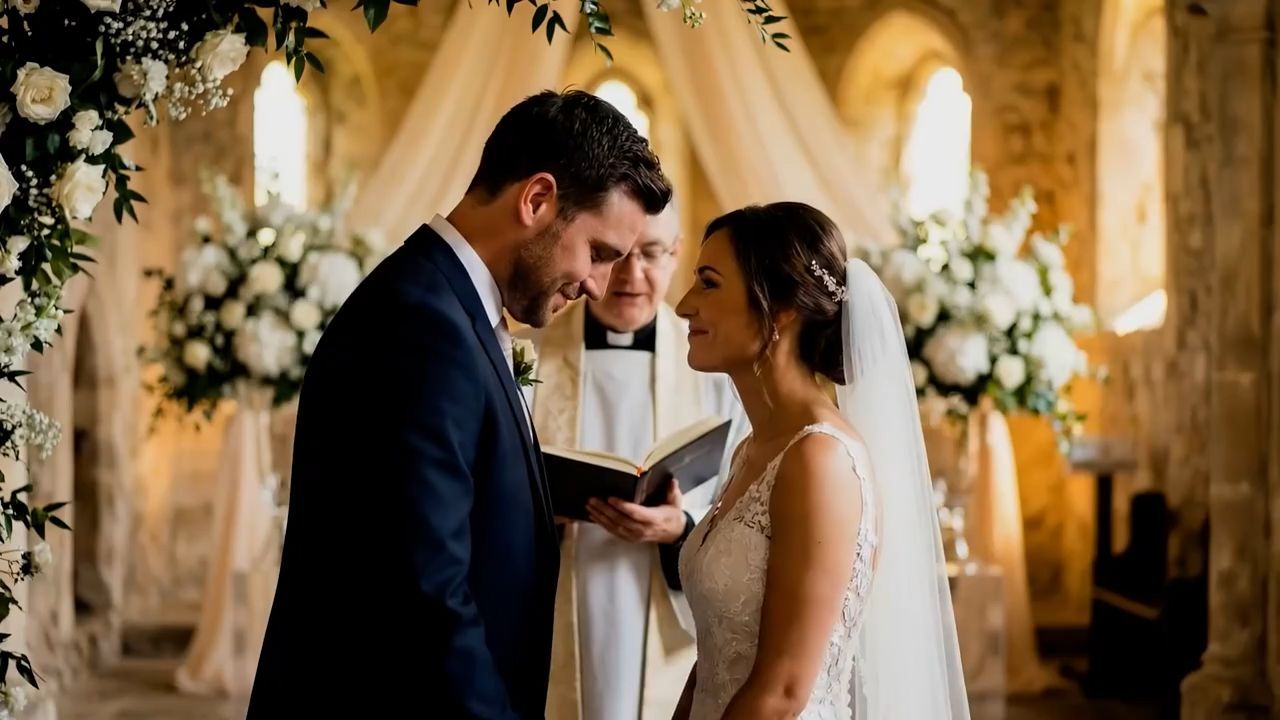
Add or Replace Dialogue in Existing Videos
For existing footage, use Kling AI’s separate Lip Sync tool to generate speech from text or upload supported audio and match it to the character’s mouth movements. For supported videos, it adjusts the character's mouth movements to match the new dialogue, so you don't have to sync the audio and lip movements by hand. You can change what a character says in a short film or give a video ad a new voice without starting the whole video over.
How to Create a Video with Text to Speech Using Kling VIDEO 3.0 Omni
Turn your script into a video with spoken dialogue in three steps, starting with a text prompt or your own character references.
Step 1: Open the Workspace and Choose Your Model
Open the Kling AI video generation workspace and select VIDEO 3.0 Omni. For text to video, start typing your prompt directly. For image to video, upload a reference image first, then describe how you want it to come to life. You can also add a saved Character Element to guide your character’s appearance and voice.
Step 2: Add Dialogue and Voice Directions
Describe the scene, character actions, and visual style, then write the dialogue you want to hear. Identify the speaker for each line and specify the language, accent, speaking pace, and tone. If you added a Character Element, reference it clearly in your prompt. Keep the dialogue concise and leave room for pauses and expressions.
Prompt Example: A realistic, cinematic scene in a quiet café on a rainy evening. Maya and Ben sit across from each other beside a window. Warm lights glow inside while rain runs down the glass. Start with a medium shot of both characters. Maya looks toward the window, then turns to Ben. Maya (female voice, soft American English, slightly hesitant): "Do you ever wish we could stay here a little longer?" Cut to a close-up of Ben. He smiles before answering. Ben (male voice, warm and relaxed American English): "Just until the rain stops." Each character speaks their own lines, with natural pauses and mouth movements that follow the dialogue. Soft rain against the window and quiet café ambience. No narration, subtitles, or background music. |
When you write your own dialogue, leave room for pauses, responses, and facial reactions. In a short video, two or three brief lines usually flow better than a long exchange.
Step 3: Choose Your Settings and Generate
Choose your video length, resolution, and aspect ratio, then click Native Audio to enable sound generation before clicking Generate. Play the result with sound on and use the checklist below to review the dialogue, voice delivery, lip sync, and background audio. Based on what you find, adjust your prompt or references and generate another version if needed.
What to Check | Details to Review | How to Fine-Tune |
Speaker & Dialogue | Each character's lines and speaking order | Put the character's name before each line to make the conversation easier to follow. |
Voice & Delivery | Pronunciation, speaking pace, and emotional tone | Adjust the length of each line and describe the language, accent, and speaking pace you want. |
Lip Sync | How well mouth movements match the dialogue | Specify who's speaking in each shot and what they say. Keep camera cuts to a minimum while characters speak. |
Background Audio | The balance between ambient sounds and dialogue | Describe the type and volume of background sounds in your prompt, keeping the dialogue clear. |
You can also tweak the dialogue and pacing to match the mood you're going for. Change one or two details at a time, then see how the voices, expressions, and camera shots respond to your edits.
The End
The best text-to-speech tool depends on what you're creating. For audiobooks and everyday listening, clear narration and easy audio exports may be enough. For video projects, dialogue, timing, and how a voice fits each character matter just as much. With Kling VIDEO 3.0 Omni, you can write your characters' lines, set the scene, and generate the dialogue alongside the visuals, without recording separate voiceovers.
FAQs
What Is Text-to-Speech?
Text-to-speech (TTS) reads written text aloud using a computer-generated voice. It works out how to pronounce words, numbers, and abbreviations, then turns the text into speech. You'll find it in read-aloud apps, navigation systems, audiobooks, and video voiceovers. The best text-to-speech models focus on natural pronunciation and voice quality, while tools like Kling VIDEO 3.0 Omni also let you create dialogue across multiple video shots and specify each character's voice, pace, and tone.
What Is the Best Text-to-Speech Online?
For audiobooks or articles, a clear, natural voice may be all you need. Video dialogue is different. You need the right voice for each character, with speech and mouth movements that fit the scene. Kling VIDEO 3.0 Omni lets you write dialogue across multiple shots, choose languages and accents, and set each character's speaking pace and tone while generating the video.
Can AI Text-to-Speech Sound Like a Real Person?
Yes. The best text-to-speech models can produce natural-sounding voices with realistic pauses, accents, and changes in tone. Kling VIDEO 3.0 Omni also brings dialogue, lip movements, facial expressions, and scene sounds together in the same video. You can even extract a voice from a character video and link it to a Character Element, keeping the character's voice consistent across different shots and videos.
Can I Use AI-Generated Voices Commercially?
Yes, as long as the tool's license allows it. You can use AI-generated voices for YouTube videos, ads, podcasts, or client work, but some services restrict commercial use on free plans. Check the terms for your chosen voice before publishing. If you're cloning someone's voice, get their permission and make sure you have the rights to use it commercially.
What Languages Does Kling VIDEO 3.0 Omni Support?
Kling VIDEO 3.0 Omni supports dialogue in Chinese, English, Japanese, Korean, and Spanish, with options to guide accents and delivery through your prompt. You can also combine different languages within the same video. Kling 4.0, scheduled to officially launch in mid-October 2026, will expand dialogue support to nine languages, giving you more ways to create character stories, localized ads, and other spoken video content for audiences in different regions.